Transactional email is not exempt from CAN-SPAM. If I send a receipt, password reset, or account alert, I can skip some commercial-email rules - but I still need accurate header details, and I can lose the exemption if I add promo content.
Here’s the short version:
- Classify the email first using the primary-purpose test
- Keep transaction details at the top of the message
- Do not let subject lines, banners, or footers sound like ads
- Review shared templates before launch
- Send promo content separately when possible
- Watch the penalty - up to $53,088 per violating email under the FTC’s 2026 adjusted amount
If the message starts to sell - with upsells, discount blocks, or marketing-heavy footer copy - it may be treated as a commercial email instead. Then I need items like an unsubscribe link, a mailing address, and ad disclosure.
The core idea is simple: a transactional email should look and read like it exists to complete or explain a transaction - not to market something else.
Complying with the CAN SPAM Act - Business Tips | Federal Trade Commission
Classify the Message Before Sending
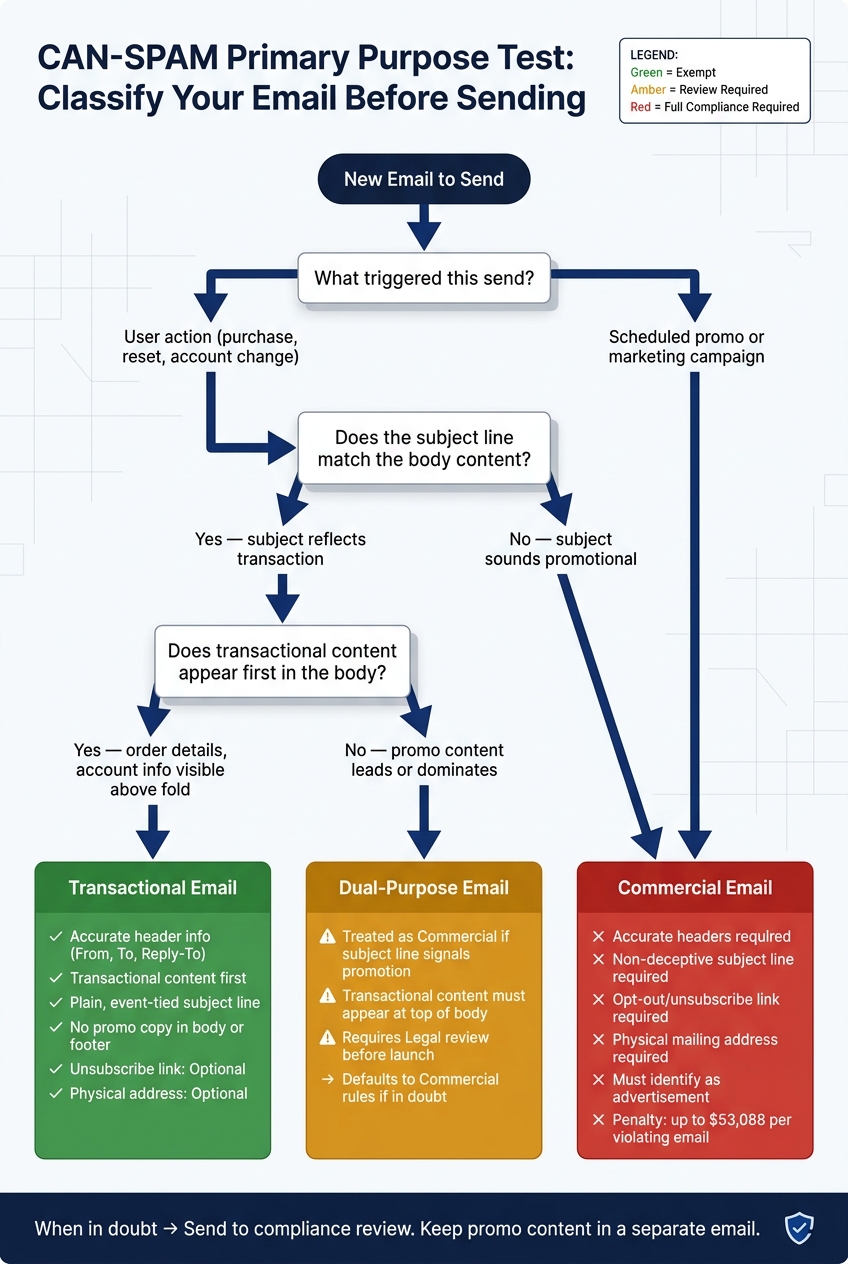
CAN-SPAM Compliance Flow for Transactional Email
Use the primary-purpose test before each send. This is the decision gate that tells you whether the email is exempt from most CAN-SPAM rules or whether it has to meet the full commercial standard.
Once you classify the message, keep it tight. Include what the transaction calls for, and leave out the rest.
Apply the Primary Purpose Test to Each Email Type
Use this test before you build the template so you know which CAN-SPAM rules apply.
| Message Type | Primary Purpose | CAN-SPAM Requirements |
|---|---|---|
| Transactional / Relationship | Confirms a transaction, delivers required account or security information, or provides goods or services tied to the transaction | Accurate header information; exempt from most opt-out and physical-address requirements |
| Commercial | Promotes a product or service | Accurate headers, non-deceptive subject line, opt-out link, physical mailing address, and identification as an advertisement |
| Dual-Purpose | Includes both transactional and promotional content | Treated as commercial if the subject line signals a promotion or if transactional content does not appear at the beginning of the body |
For dual-purpose emails, put the transactional content first and make it plainly recognizable as transactional. A label like "Your Account" at the top doesn't cut it. The opening of the email needs real transaction details, such as an account balance, order status, or other specific account activity.
Use a Short Decision Path for Borderline Cases
For renewal notices, onboarding sequences, or receipts with upsell content, run three checks before sending:
- What triggered the send? A user action - like a purchase, password reset, or account change - points toward transactional. A scheduled promo send points toward commercial.
- What should the recipient expect first? If the email ties back to an agreed transaction, that transaction-related information should be obvious right away.
- Does the subject line match the body? If the subject line reads like a promotion but the body includes account details, that can push the message into commercial territory.
If those answers point in different directions, send the message to compliance review.
If the message qualifies as transactional, the next move is simple: strip out anything that isn't needed.
Keep Transactional Emails Focused on Required Content
Once a message passes the primary purpose test, the next place to clean up is the body copy. At that point, template content stops being a style choice and becomes a compliance issue.
What to Keep in the Email
Keep only what the recipient needs to complete or understand the transaction. That includes order details, dollar amounts, shipping or renewal status, account or security alerts, recall, safety, and warranty notices, plus any next-step instructions. Add support contact details when they help the person finish the transaction.
Placement matters just as much as the content itself. If the transactional details don't appear first, the email can start to look promotional. The order number and billing total should be visible without scrolling. Put those details front and center, and keep everything else in the background.
Keep the transactional details above the fold. Then, if you include any optional elements, make sure they don't get in the way of the main message.
What to Remove or Limit to Stay Exempt
Body copy can change the legal category of the email. Promotional hero images, discount codes, cross-sells, unrelated recommendations, and purchase CTAs can push the message into commercial territory. Basic brand styling - your logo, brand colors, and a standard footer - usually isn't the issue. The line gets crossed when the design or copy starts reading like a marketing email.
A simple rule helps here: send promotional content in a separate email. That keeps the transactional message exempt. Once the body is clean, review the subject line, headers, and footer with the same narrow purpose in mind.
sbb-itb-6e7333f
Check Subject Lines, Headers, and Footers
A transactional email can still get into trouble if the subject line or footer sounds like a marketing message. Those small parts matter. They can change how the email is treated.
Use Accurate Subject Lines and Sender Information
Keep transactional subject lines plain and tied to the event. Say exactly what happened: "Order #12345 confirmed", "Password reset request", or "Shipping update for Order #7892." If the subject line is vague, it can look promotional or misleading.
Your From, To, and Reply-To fields should clearly show the sending business. Use one consistent authenticated domain, such as notifications@yourbrand.com, and set it up with SPF, DKIM, and DMARC. Also, use a Reply-To inbox that someone checks. Skip no-reply addresses.
Once the header looks right, move to the footer.
Know Which Footer Elements Are Optional vs. Required
Footer copy can shift a message from transactional to commercial. A discount, offer prompt, or newsletter sign-up in the footer can make the message promotional.
| Footer Element | Transactional Email | Commercial Email |
|---|---|---|
| Unsubscribe link | Optional | Required |
| Physical postal address | Optional | Required |
| Ad identification | Optional | Required |
Set Footer Rules for Shared Templates
Shared templates are a common source of compliance mistakes. Keep transactional and promotional footer modules separate. Lock them down so promo language doesn't slip into transactional flows.
Treat shared footer modules as part of the pre-launch audit.
Audit the Workflow and Close With a Compliance Checklist
Run a Pre-Launch CAN-SPAM Audit
Once the template is set, the workflow needs to hold that line.
Before any transactional email goes live, run a short, structured audit. The point is simple: catch classification mistakes, footer edits that slip in promo copy, and sender mismatches before launch. Give each control one clear owner so nothing falls through the cracks.
| Audit Step | Responsible Team | What to Verify |
|---|---|---|
| Message Classification | Legal / Marketing | Confirm transactional primary purpose. |
| Copy Placement | Lifecycle Marketing | Place transactional content first; remove promo copy. |
| Sender / Header Accuracy | Operations / IT | Verify "From", "To", "Reply-To", and routing information. |
| Subject Line Review | Marketing | Confirm the subject line is non-deceptive and matches the email's content. |
| Footer Compliance | Legal / Ops | Check required footer elements for commercial or dual-purpose emails. |
| Technical Authentication | IT / Security | Verify SPF, DKIM, and DMARC. |
| Legal Approval | Legal | Borderline dual-purpose templates with promotional content need Legal sign-off before launch. Keep the record with the template. |
After any system update, rerun the trigger, sender, subject, and footer checks. Small edits can change classification. A footer tweak or routing change is often all it takes.
Conclusion: The Core Rules for Transactional Email
The rules come down to four controls:
- Classify every email by its primary purpose before it sends.
- Put transactional content first in any mixed message.
- Keep subject lines functional and tied to the event.
- Keep commercial footer requirements out of transactional flows, because promo language in a transactional footer can reclassify the whole message.
When each control has a clear owner, and borderline cases go through Legal approval, the risk of accidental reclassification drops. That helps routine customer emails stay compliant.
FAQs
When does a transactional email become commercial?
A transactional email turns into a commercial email when its primary purpose shifts from delivering needed account or order information to promoting a product or service.
That line matters. Add marketing elements like product recommendations or a “you might also like” banner, and the transactional carveout may no longer apply.
For dual-purpose messages, regulators look at the message as a whole - what it mainly does, what stands out, and where the promotional content appears. If the email is meant to sell, it may be treated as commercial.
Once that happens, it must comply with CAN-SPAM rules, including opt-out requirements.
Can I add a promo banner to a receipt email?
It’s not recommended.
Adding a promotional banner to a receipt email can turn that message into a commercial email under CAN-SPAM. And once that happens, the transactional exemption may no longer apply.
If you include marketing content, the email needs to follow the full set of commercial email rules, including a clear unsubscribe link.
For compliance and deliverability, keep promotional content separate from transactional sends.
Who should approve borderline dual-purpose emails?
Approval should sit with people who know CAN-SPAM well, like compliance officers or senior marketing managers.
If an email includes a lot of promotional content, they should treat it as a commercial message. That means the transactional details need to appear clearly at the top, while any promotional copy stays secondary.