A countdown timer works only when the deadline is real. If I use one in email, I need 3 things locked first: the right timer type, the exact end time, and fallback text for people who do not load images.
Here’s the short version:
- Fixed timers fit launches, webinars, and quarter-end promos
- Evergreen timers fit trial-expiry emails tied to each user’s end date
- Behavior-based timers fit flows like cart or quote expiry, but need CRM or billing data
- Image-based timers work in major inboxes, but they can fail when images are blocked
- Fallback copy like “Offer ends July 31, 2026 at 11:59 PM PT” keeps the message clear
- Trust drops fast if the timer ends but the offer still stays live
- Overuse hurts - if every email has urgency, people stop caring
One 2026 example in the piece shows open rates moving from 27% to 38% and CTR from 2.9% to 6.6% when countdowns were used with other dynamic email elements. But that does not mean every timer will help. It means the setup has to match the campaign and the end date has to mean something.
If I had to boil the article down to one rule, it would be this: match one timer to one actual deadline, then test it across inboxes and landing pages before sending.
Mailtimer Review - Create Urgency & Scarcity Dynamic Email Timers Based on Set Date or Time of Open
sbb-itb-6e7333f
Pick the Right Timing Logic Before You Build Anything
Before you touch a timer tool, decide which timing model fits the campaign. If the timer doesn't match the offer, the deadline feels made up.
Fixed, Evergreen, and Behavior-Based Timers
Once the email loads the timer the right way, the next call is the deadline model. Fixed deadline timers count down to one specific moment, and every subscriber sees the same clock. That makes them a good fit for product launches, webinars, and end-of-quarter offers. Evergreen timers start counting from the moment the email sends to each recipient, so they work well for trial expiry flows. Behavior-based timers are triggered by a real event in your CRM and rely on live data sync.
| Timer Type | Best Use Case | Main Limitation |
|---|---|---|
| Fixed | Launches, webinars, end-of-quarter offers | Not personalized to individual behavior |
| Evergreen | Trial expiry flows | Can reset if not anchored to a specific event |
| Behavior-Based | Cart expiry, quote expiry, coupons | Requires deep system integration |
Use the model that fits the campaign, not the one that creates the most pressure. Match one timer to one real deadline. Use a countdown only when the deadline is real.
QA Rules That Prevent Broken Urgency
After you choose the model, make sure the deadline shows up the right way everywhere the email can open. Model choice comes first. Delivery checks come next.
A wrong timer breaks the message fast. Test the email on desktop and mobile so the timer stays easy to read on smaller screens. Check that the deadline in the email matches the deadline on the landing page exactly. If the email says "2 hours left" but the site says the offer already ended, trust drops right away.
For U.S. audiences across multiple time zones, anchor the timer to one U.S. time zone, such as ET or PT, and label it clearly in the fallback copy. Test that flow-based timers stay fixed to the original send date. Put the deadline right under the timer - for example, "Offer ends tonight at 11:59 PM ET" - so subscribers who block images can still see the cutoff.
With the timing model set, map it to the launch, webinar, trial, or offer.
How to Apply Timers to the 4 Email Campaigns That Need Them
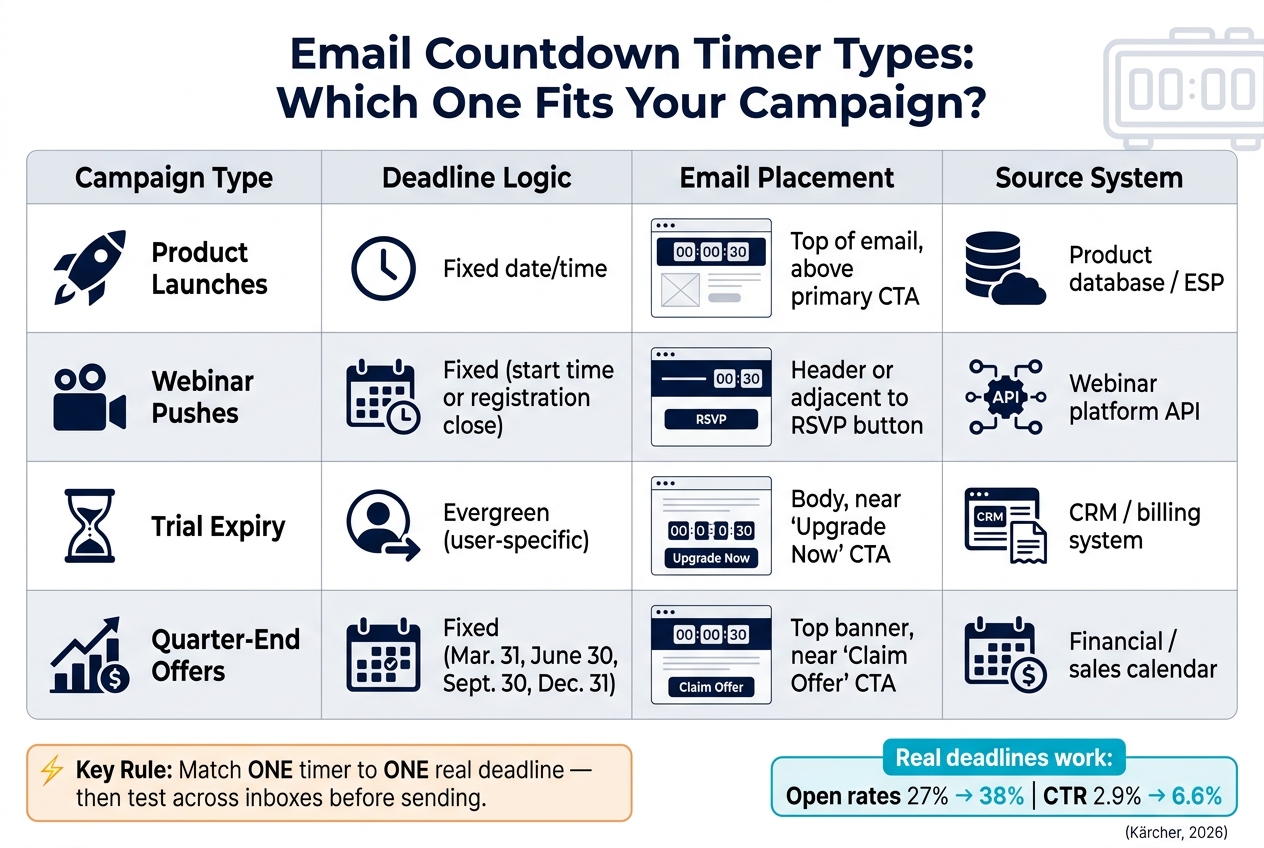
Email Countdown Timer Types: Which One Fits Your Campaign?
The offer closes the deal. The timer just cuts out delay.
So the next step is simple: match the timer setup to the campaign type. Use fixed timers when everyone shares the same deadline. Use evergreen timers when the deadline depends on the individual user.
Launches and Webinar Pushes
For product launches, a fixed timer makes sense. Every subscriber sees the same cutoff, which keeps the message clear and easy to check against the landing page. Put the timer at the top of the email, right above the primary CTA. The deadline should come from the system that owns it.
Webinar emails need one extra line that many teams leave out: what happens when the timer hits zero. Be specific. Does registration close? Does the livestream start? Does the replay expire?
A label like "Registration closes at 11:59 PM ET on July 18" does more work than the animation itself. Pull that deadline from your webinar platform or registration system so the timer always matches the event page.
Trial Expiry Flows and End-of-Quarter Offers
Trial expiry emails work a little differently. Each subscriber has their own end date stored in your CRM or billing system, so an evergreen timer tied to that date is the right setup. Place the timer in the body of the email, close to the "Upgrade Now" CTA, so it supports the message without stealing all the attention.
Quarter-end offers tied to Mar. 31, June 30, Sept. 30, and Dec. 31 work because budgets and renewals already create urgency. In this case, use a fixed timer pulled from your financial or sales calendar. Put it in a top banner near the "Claim Offer" CTA.
Here’s the quick map:
| Campaign Type | Deadline Logic | Email Placement | Source System |
|---|---|---|---|
| Product Launches | Fixed date/time | Top of email, above primary CTA | Product database / top email marketing platforms |
| Webinar Pushes | Fixed (start time or registration close) | Header or adjacent to RSVP button | Webinar platform API |
| Trial Expiry | Evergreen (user-specific) | Body, near "Upgrade Now" CTA | CRM / billing system |
| Quarter-End Offers | Fixed (Mar. 31, June 30, Sept. 30, Dec. 31) | Top banner, near "Claim Offer" CTA | Financial / sales calendar |
Where Urgency Helps and Where It Hurts
Once the timer lines up with the campaign, the next check is simple: is the deadline real? A countdown only works when the end date is fixed and visible. If the deadline is soft, the urgency will feel fake.
Performance Gains When the Deadline Is Real
Real deadlines help people act. Someone who planned to wait until tomorrow clicks today because the window is closing. That’s the whole point.
In 2026, Kärcher used interactive seasonal countdowns along with other dynamic elements in a campaign. Open rates went from 27% to 38%, and CTR went from 2.9% to 6.6%. In time-bound campaigns like webinar registrations, product launches, trial renewals, abandoned cart recovery, and quarter-end pushes, urgency works best when the deadline matters and hitting zero means something actually stops.
That same pressure can backfire fast if the deadline is fake or shifts around.
Trust Risks and Overuse
Trust falls when the offer stays live after the timer ends. If a subscriber clicks after expiry and still sees the deal running, the timer stops being a signal and turns into decoration. After that, every future countdown becomes harder to believe.
There’s another issue too: urgency fatigue. If every email includes a timer, people stop treating it as important and start skimming past it. Save high-urgency tactics for big moments like Black Friday, a product launch, or a quarter-end push - not weekly newsletters.
A countdown works only if the offer ends exactly when the timer says it does. Avoid open-reset timers. Use one fixed expiration for every recipient. Fast-moving timers can also distract motion-sensitive readers, so use static fallback text for motion-sensitive readers and for people using image blockers.
Next, compare tools that generate these timers with accurate expiration and fallback text support.
Timer Tools to Consider and a Deployment Checklist
What to Compare When Choosing Timer and Dynamic Content Tools
Set your deadline logic first. Then pick the tool.
That order matters. If the platform is a poor fit, you can end up with broken rendering, bad time-zone handling, or messy revenue tracking. For launches and webinars, fixed deadlines need to hold up every time. For trial-expiry emails, each user needs timing tied to their own date. After that, the job is simple on paper but easy to mess up in practice: the tool has to render, sync, and report without drifting from the actual deadline.
Focus on four things:
- rendering reliability
- U.S. time-zone handling
- CRM or billing sync
- revenue reporting
It also helps to choose a tool that supports both fixed deadlines in a specific U.S. time zone and send-time logic for personalized flows. And if your setup passes coupon or trial data from a CRM, look for tools that accept Unix timestamps or ISO 8601 formats. That way, your ESP can pass the exact expiration date straight into the timer.
Use the table below to line up the tool type with the campaign and the level of integration work involved.
| Tool Type | Integration Effort | Live Updates | Pricing | Best Fit |
|---|---|---|---|---|
| Standalone (Sendtric, MotionMail) | Low - paste HTML | High (server-side GIF) | Free or low-cost ($) | Launches, webinars |
| ESP-Native (Moosend, SendPulse) | Minimal - drag-and-drop | High (integrated) | Included in ESP plan ($) | Trials, quarter-end offers |
| AMP-Powered (Mailmodo) | High - requires full auth stack | Very high (interactive) | Enterprise tier ($) | In-email RSVPs, forms |
| Dynamic Content (NiftyImages) | Moderate - API/scripting | High | Usage-based ($) | Personalized launches |
The Email Service Business Directory can help teams assess email platform compatibility and compare service providers.
Deployment checklist
- Verify the timer matches the backend deadline and renders cleanly in major clients.
- Test rendering across major clients, especially iOS Mail and Outlook.
- Use user-specific send-time logic for trial-expiry flows so each subscriber's clock starts at the correct date.
- Make sure tap targets are at least 44px and that the timer still reads clearly on phones.
Conclusion: How to Use Urgency Without Losing Subscriber Trust
Use urgency only when the deadline is real, the timer matches the backend clock, and the fallback still makes the cutoff clear.
FAQs
How do I choose the right timer type?
Choose the timer based on how your offer ends: a fixed date for everyone, or a countdown that starts when each person opens the email.
Use continuous timers for set deadlines, like end-of-quarter offers or webinar start times. Use dynamic timers for personal flows, like expiring coupon codes.
The key is simple: match the timer to your sales plan, and don’t use a timer that keeps ticking after the offer has already expired.
What should happen when a countdown ends?
When a countdown timer hits zero, the offer tied to it should end. That’s how you keep trust intact.
A timer sets a plain expectation: there’s a deadline, and that deadline means something. If the email says time is running out, the message and design need to line up with that promise and not feel misleading.
Used well, a countdown timer adds urgency. It makes the deadline feel close and gives people a clear reason to act before the window closes.
How can I prevent timer issues across inboxes?
Prioritize compatibility, testing, and sound implementation. If an email client fails to show the timer, the message should still make sense. Add fallback copy that explains the offer or deadline in plain text, then test across devices and email clients before you send anything.
When you can, use server-side rendered timers. And place the timer right in the HTML of a text block instead of dropping it into an image block. That tends to work better across clients. It also helps to check for slow load times - heavy elements can annoy recipients fast.