Emails that load slowly or get clipped can frustrate readers and hurt engagement. Here's what you need to know:
- File Size Matters: Gmail clips emails over 102 KB, hiding essential elements like call-to-action buttons and unsubscribe links. Large attachments, Base64 encoding, and oversized images can inflate file sizes.
- Impact on Performance: Emails with heavy HTML or images load slower, especially on mobile networks. For instance, mobile-optimized emails average 53 KB in HTML weight and 2.7 MB in image weight.
- User Behavior: If your email takes longer than 2–4 seconds to load, many users will abandon it. Around 51% of recipients delete emails that don’t load quickly.
- Optimization Tips: Resize images to 1,200–1,600 pixels, compress them to 70–80 KB, and clean up redundant code. Minify HTML and use system fonts to reduce load times.
Key Takeaway: Keeping email file sizes under 100 KB ensures faster load times, avoids clipping, and improves engagement.
Optimizing Email File Size to Avoid Getting Clipped in Gmail
sbb-itb-6e7333f
Research Data on File Sizes and Load Times
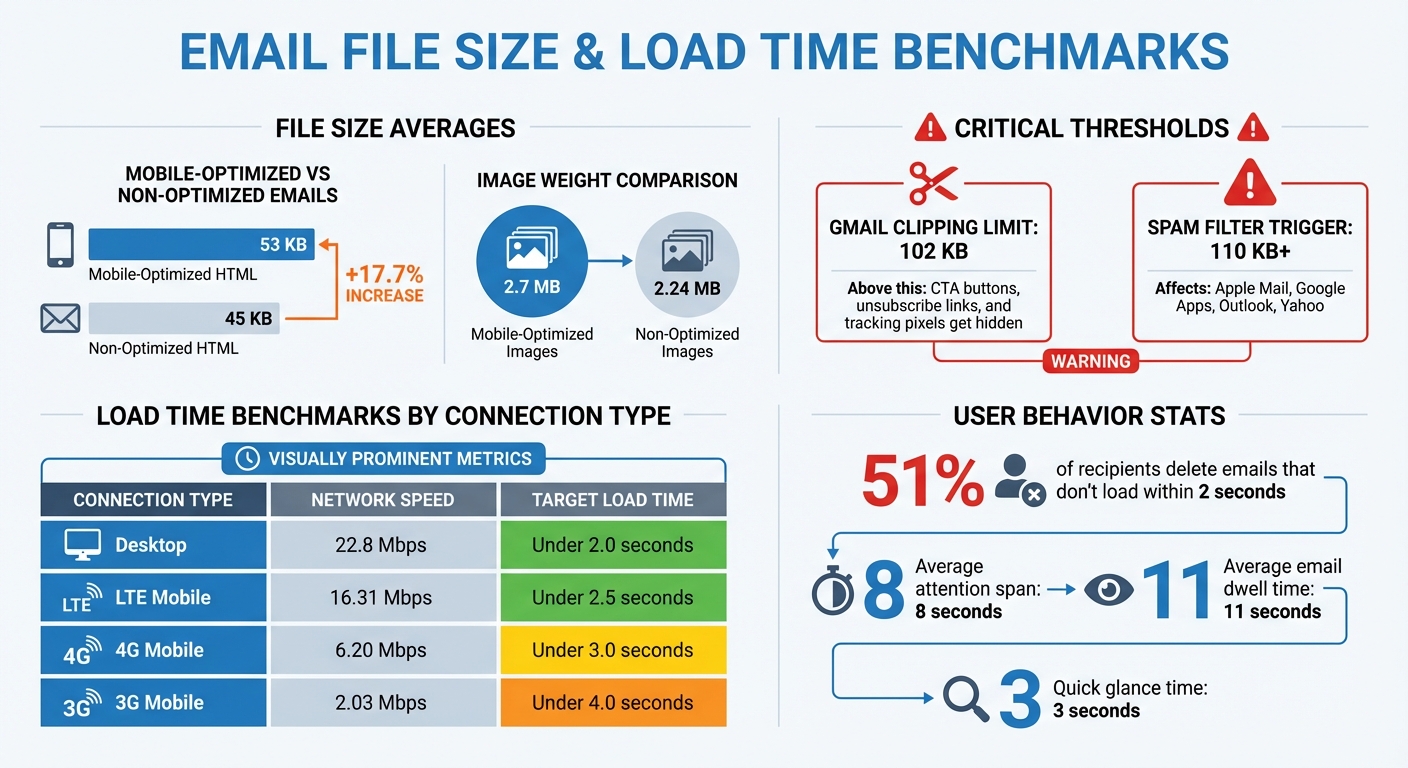
Email File Size Benchmarks and Load Time Standards by Device
File Size Ranges Across Devices
Mobile-optimized emails tend to be heavier, averaging 53 KB, compared to 45 KB for non-optimized versions - a 17.7% increase. This added weight comes from the extra code required to ensure proper rendering across various screen sizes, including media queries and responsive design elements.
When it comes to images, the difference is even more pronounced. Non-optimized emails average 2.24 MB in image weight, while mobile-optimized campaigns jump to 2.7 MB. These larger file sizes directly impact load times, making optimization a critical consideration.
The stakes are high, especially since exceeding certain size thresholds can have serious consequences. For instance, emails with HTML sizes over 110 KB often trigger spam filters for major email providers like Apple Mail, Google Apps, Outlook, and Yahoo. This can result in essential elements - such as call-to-action buttons, unsubscribe links, and tracking pixels - being flagged or failing to load.
Load Time Benchmarks and Metrics
Load time expectations vary depending on the connection type, but the benchmarks are clear. Desktop users, with an average network speed of 22.8 Mbps, expect emails to load in under 2 seconds. On mobile, LTE connections (at 16.31 Mbps) should deliver emails within 2.5 seconds, while 4G users (at 6.20 Mbps) need load times under 3 seconds. Even 3G users - still prevalent in many areas - require emails to load in under 4 seconds on speeds of 2.03 Mbps.
These benchmarks are critical because the average consumer’s attention span is just eight seconds. If your email takes too long to load, you risk losing engagement before the content even appears.
"Large images can impact email load time, resulting in your subscribers deleting your email before it has been downloaded".
Balancing visual appeal with performance is no small task. While 41.5% of marketers cite graphics as the most engaging type of visual content, these same visuals can push file sizes beyond optimal limits, jeopardizing load times and user experience.
| Connection Type | Benchmark Load Time | Average Network Speed (U.S.) |
|---|---|---|
| Desktop | Under 2.0 seconds | 22.8 Mbps |
| LTE | Under 2.5 seconds | 16.31 Mbps |
| 4G | Under 3.0 seconds | 6.20 Mbps |
| 3G | Under 4.0 seconds | 2.03 Mbps |
How File Size Affects User Behavior and Email Results
Bounce Rates and Engagement Data
When emails exceed 102 KB, Gmail clips them, hiding essential elements like call-to-action buttons, unsubscribe links, and tracking pixels. This forces recipients to click an additional "View Entire Message" link, a step many simply won't bother with.
"Any extra step a reader has to take is a huge stumbling block to the success of an email campaign." Using one of the best email marketing platforms can help mitigate these technical hurdles. – Kyle Lapaglia, Email on Acid
The impact is clear: around 51% of recipients abandon an email within two seconds if it doesn’t load or grab their attention immediately. Considering the average person receives 121 emails daily, there's little tolerance for delays or incomplete content. Worse, when unsubscribe links are hidden due to clipping, frustrated users may resort to marking the email as spam, which can harm your sender reputation and future deliverability.
Clipping also disrupts your analytics. Tracking pixels - usually placed at the bottom of your email - may not load, leading to inaccurate open rates and engagement data. Beyond this, emails between 110 KB and 650 KB are more likely to trigger spam filters in major clients like Apple Mail, Google Apps, Outlook, and Yahoo. This means your email might not even make it to the inbox.
These issues become even more pronounced for users on mobile devices.
Mobile User Problems
Mobile users face unique challenges when dealing with large email files. With 20% to 50% of all emails being read on mobile devices, file size becomes a critical factor. Slow network speeds and data limitations can make large emails frustrating, especially for users on pay-as-you-go or limited data plans.
Heavy emails with oversized images and custom fonts can delay loading times, causing content to appear blank or text to fail entirely. Given that the average email dwell time is only 11 seconds - and many users glance at emails for just 3 seconds - slow-loading emails risk being deleted before they even finish rendering.
Keeping file sizes manageable is essential to maintaining user engagement and ensuring your emails deliver the intended impact.
How to Reduce Email File Sizes
Compressing Images and Media Files
One of the easiest ways to reduce email file sizes is by resizing images before compressing them. Modern smartphones often capture photos at resolutions around 6,000 pixels wide, but most screens display content at only 1,920 pixels or less. By resizing images to a range of 1,200–1,600 pixels, you can eliminate over 90% of unnecessary pixels even before compression begins.
Next, choose the right file format. For most photographs, JPEG is the best option, while PNG works better for logos or graphics requiring transparency. When saving JPEGs, aim for a quality setting of 75–80%. This can reduce file sizes by 60–75% without noticeable quality loss. Stewart Celani, Founder of Compress.FAST, puts it simply:
"The fastest way to compress photos for email is to resize them to around 1600 pixels on the longest side and save as JPG at 75-80% quality. This typically reduces file size by 60-75% while keeping photos sharp enough for viewing on screens."
To ensure quick load times, keep individual image sizes under 100 KB - ideally in the 70–80 KB range. Tools like TinyPNG, Compressor.io, and JPEGmini are excellent for batch processing images. For animated GIFs, you can remove unnecessary frames to further reduce their size.
Don’t stop at images - cleaning up your email’s underlying code is just as important for keeping file sizes manageable.
Eliminating Redundant Code
Streamlining your email’s code can significantly reduce its size without affecting the design. Use tools like EmailComb to minify HTML and remove unused CSS. This trims unnecessary elements, ensuring your email stays lightweight.
Consider sticking to system fonts like Arial or Helvetica, which are already installed on most devices. Unlike web fonts, these don’t require additional downloads, which helps improve load times. Also, be cautious with tracked links - each one adds extra characters due to tracking parameters. Instead of overloading your email with details, include a clear call-to-action that directs readers to a landing page. This approach keeps the email concise and focused.
Whenever possible, replace images with code. For example, you can use HTML background colors instead of background images or HTML entities in place of small icons. Additionally, if you’re copying content from external editors like Google Docs, take a moment to manually strip out unnecessary formatting to avoid bloating your code.
Using Tools for Better Deliverability
Beyond reducing file sizes, specialized tools can help optimize your emails for better performance. Platforms like Litmus allow you to preview how your emails will render, estimate load times, and check for issues like Gmail clipping. These tools also simulate how images will appear under different network conditions, giving you a better sense of the user experience.
For attachments, such as PDFs, compression tools can help keep file sizes under 1 MB - or better yet, under 500 KB. This ensures they pass through strict email filters without issue.
If you’re looking for additional support, the Email Service Business Directory (https://emailservicebusiness.com) is a helpful resource. It lists top email marketing platforms and service providers that specialize in managing campaigns with optimized file sizes.
To avoid spam filters and ensure fast load times, aim to keep your total HTML weight under 80 KB and individual images below 100 KB. With nearly 42% of emails being accessed on mobile devices, quick-loading emails are essential for keeping recipients engaged.
Conclusion
Managing email file size is a key factor in ensuring successful inbox delivery and keeping your subscribers engaged. By keeping your HTML file size under 100 KB, you can avoid Gmail clipping issues and reduce the chances of triggering spam filters from major email providers.
This isn't just about technicalities - it directly impacts how users interact with your emails. Mobile users, in particular, are quick to abandon emails that take too long to load. With 51% of recipients deleting an email within two seconds if it doesn’t load or grab their attention, and the average person spending only about 3 seconds scanning an email, every kilobyte can make a difference.
The good news? You can optimize without losing quality. Resize images to a width of 1,200–1,600 pixels, compress them to 70–80 KB, and minify your HTML code. These steps help keep your emails lightweight while maintaining their visual appeal.
FAQs
How can I check my email’s total HTML size before sending?
To determine your email's total HTML size, you can start by inspecting the source code within your email client or marketing platform. Many platforms provide an option to view the raw email or source code, where the size is displayed in bytes. Another method is to copy the HTML code into a text editor that displays the file size. Additionally, some email marketing tools include built-in features to analyze the email's size before you send it.
What counts toward the 102 KB Gmail clipping limit?
The 102 KB Gmail clipping limit accounts for the email's HTML source code, which includes elements like text, images, HTML tables, inline styles, CSS, tracking code, and hidden preview text. However, attachments are not included in this limit.
How do I speed up emails without removing key visuals?
To make your emails load faster while retaining essential visuals, focus on optimizing your images and HTML. Compress your images to fall within the 100KB–200KB range, and use modern formats like WebP for efficiency. For specific needs, stick to JPG for photos and PNG when transparency is required.
Additionally, streamline your HTML by cutting out unnecessary elements and minifying the code. Keep the total message size under 1MB to ensure quicker load times, particularly for users on slower networks.