Pairing Klaviyo with BigCommerce helps you centralize email marketing platforms and customer data. Setting it up takes under a minute, but proper configuration ensures smooth syncing and effective campaigns. Here's what you need to know:
- Why Integrate? Automatically syncs customer data (purchases, cart activity, etc.), enabling real-time, targeted email and SMS campaigns. Businesses see results like a 66% revenue boost from email marketing.
- Key Benefits: Automated flows (abandoned cart emails, welcome series), AI tools for customer insights (lifetime value, churn risk), and top dynamic segmentation tools.
- What You’ll Need: Admin access on both platforms, BigCommerce Permanent Address, and at least 12 months of order history.
- Steps Overview:
- Connect Klaviyo and BigCommerce via the Klaviyo app.
- Sync email/SMS subscribers and configure tracking.
- Add Klaviyo.js tracking code for advanced metrics like product views.
- Verify & Troubleshoot: Check data flow in Klaviyo, test tracking scripts, and resolve sync issues (e.g., SSL certificate or theme updates).
Proper setup ensures accurate data syncing, effective marketing campaigns, and real-time insights into customer behavior. Regular maintenance and testing keep everything running smoothly.
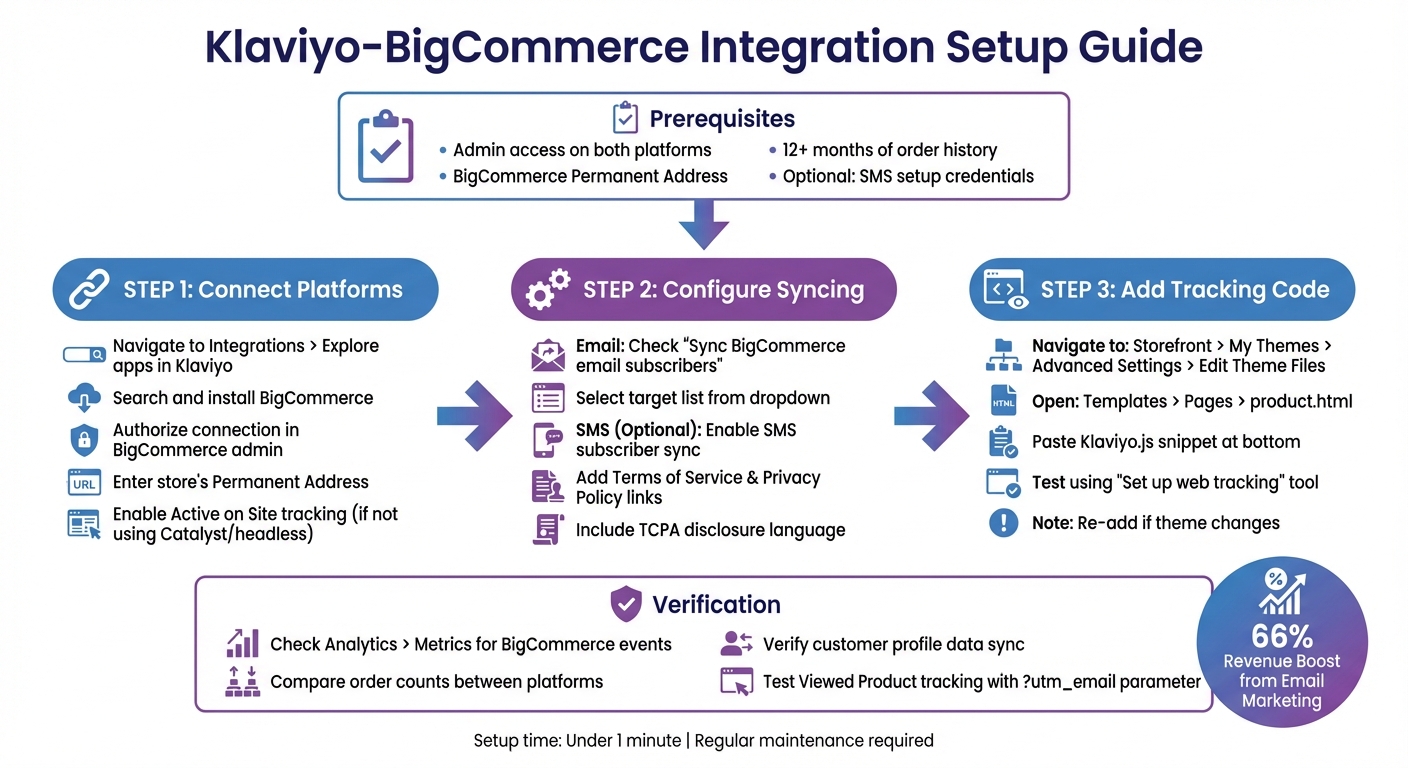
Klaviyo-BigCommerce Integration Setup Process: 3 Main Steps with Prerequisites
Bigcommerce Klaviyo Integration In Minutes(Boost Your Sales)
sbb-itb-6e7333f
Prerequisites for Integration
Before diving into the integration process, make sure you have all the necessary access and information. Missing any key details could delay the setup or lead to syncing issues. Here's what you need to check regarding account access, store details, and optional SMS setup.
Account Access Requirements
To successfully integrate Klaviyo with BigCommerce, you’ll need administrator permissions on both platforms. Without admin access, you won’t be able to install the app or make the required changes to your store settings. For a smooth start, log out of both platforms before beginning the process to ensure a clean connection.
If you plan to enable "Viewed Product" tracking, you’ll need the ability to edit your BigCommerce theme files. For stores using a default theme, it’s a good idea to create a copy before adding the tracking code to product.html. If your store uses a headless or Catalyst setup, keep your Klaviyo Public API Key ready - this is essential for manually installing onsite tracking.
Store URL and Order History Verification
When setting up the integration, use your BigCommerce Permanent Address, not the public-facing URL customers use to visit your store. This permanent address is a unique URL that BigCommerce uses for backend management. You can find it in the BigCommerce admin panel by navigating to Account Settings > Store Details and scrolling to the Permanent Address section.
"Your store's permanent address is not the same as your store's URL where customers visit your store. The permanent address is a special URL BigCommerce uses to manage your store." - Klaviyo Help Center
Additionally, ensure you have access to at least 12 months of order history, as Klaviyo will sync your historical data from the moment the integration begins.
SMS Setup in Klaviyo (Optional)
While SMS syncing isn’t required for the core integration - email and catalog data will sync regardless - you might want to set up SMS in Klaviyo if you plan to collect SMS consent at checkout right away.
If you decide to enable SMS later, go to Integrations > BigCommerce, select "Sync your BigCommerce SMS subscribers", and click Update Settings. Before turning on SMS consent, ensure your Terms of Service and Privacy Policy links are live, as BigCommerce requires these for TCPA compliance.
Integration Steps
Follow these steps: connect BigCommerce to Klaviyo, set up subscriber syncing, and add the necessary tracking code.
Connect BigCommerce to Klaviyo
Start by heading to Integrations > Explore apps in Klaviyo. Search for BigCommerce, click Install, and then select Connect to BigCommerce. You'll need to authorize the connection within your BigCommerce admin panel. Once authorized, input your store's Permanent Address, which you can find under Account Settings > Store Details in BigCommerce.
If you want to enable Active on Site tracking, check the box marked Automatically add Klaviyo onsite javascript. However, if you're using a BigCommerce Catalyst or a headless setup, leave this box unchecked. Instead, you'll need to manually install tracking by using your Klaviyo Public API Key in your code repository.
Configure Email and SMS Subscriber Syncing
After connecting, set up email and SMS subscriber syncing. For email, check the box labeled Sync your BigCommerce email subscribers to Klaviyo and choose a list from the dropdown menu. If your desired list isn't visible, create it first under Audience > Lists & segments, then refresh the integration settings page.
For SMS syncing, check Sync your BigCommerce SMS subscribers to Klaviyo. Keep in mind, SMS functionality must already be enabled in Klaviyo. You'll also need to provide links to your Terms of Service and Privacy Policy, and include TCPA disclosure language to ensure compliance. To collect SMS consent at checkout, copy the provided code snippet and paste it into your BigCommerce checkout file.
Add Klaviyo.js Tracking Code
While the automatic javascript setup covers basic tracking, you'll need to manually add a code snippet for Viewed Product tracking. This is essential for browse abandonment flows, which help target customers who view products but don't add them to their cart.
To do this, navigate to Storefront > My Themes > Advanced Settings > Edit Theme Files > Templates > Pages > product.html in BigCommerce. Open the product.html file and paste the snippet at the very bottom.
Once the code is added, use Klaviyo's Set up web tracking tool to test the connection. Keep in mind, if you switch your BigCommerce theme in the future, you'll need to re-add this snippet to the new theme's product.html file.
You’re now ready to verify the integration in the next section.
Verify the Integration
To ensure everything is working smoothly between BigCommerce and Klaviyo, start by assessing email platform compatibility and checking the data flow. Go to Analytics > Metrics in Klaviyo, then filter by "BigCommerce." Here, you'll see all synced events marked with the BigCommerce icon. Look for metrics like Placed Order, Started Checkout, Ordered Product, and similar events.
A dependable way to verify the integration is by comparing order counts. Head to Analytics > Metrics > Placed Order, hover over a specific date (e.g., yesterday), and note the total. Then, cross-check this number with your BigCommerce admin's order records for the same date. If the counts don't match, confirm that the timezones in Klaviyo (Settings > Organization) and BigCommerce are aligned.
Once you've verified the order metrics, dive into individual customer profiles to ensure all data is syncing correctly.
Check Data Sync and Product Information
Next, confirm that customer profile data is syncing as expected. Use Klaviyo's search feature to find a specific customer and review their profile. Key attributes to check include Email, First Name, Last Name, External ID, and Customer Group. Keep in mind that location details like City, State, and Zip will only sync after the customer places their first order.
When the integration is first set up, Klaviyo imports historical data from the very beginning of your store's existence. Once the profile data checks out, proceed to test event tracking for further validation.
Test Product View Tracking
To verify that Viewed Product tracking is functioning, use your email address as an identifier. Add ?utm_email=your-email@example.com to the end of your store's URL, then reload the page. Navigate to a product page, and afterward, check your Klaviyo profile's Activity Feed for a "Viewed Product" event tied to your email.
You can also use Klaviyo’s built-in validator for this. Go to Integrations > Manage Data > Set up web tracking, enter your store URL, and click the generated link to visit your site. Afterward, return to Klaviyo and look for a "Data received" confirmation. For additional verification, head to Analytics > Metrics > Viewed Product and review the real-time activity feed to see product views across your store.
Troubleshooting Common Problems
Lists or Segments Not Appearing
If your lists aren’t showing up in the dropdown, the first step is to create a list in Klaviyo. Go to Audience > Lists & segments and make sure to create a list - segments won’t work for syncing subscribers. Click Create New, select Create list, and then refresh the integration settings page. The new list should now appear in the dropdown.
Next, ensure that the sync box is checked under Integrations > BigCommerce in the Sync settings section. Look for the option labeled Sync your BigCommerce email subscribers to Klaviyo and confirm it’s enabled. If the integration isn’t working at all, check the SSL certificate for your BigCommerce store. Klaviyo requires an SSL certificate with a Grade A rating to function properly. As Brian Turcotte, a Klaviyo Alum, notes:
"Klaviyo requires a grade A to integrate, so if it's less than that you may need to update your SSL certificate to move forward".
Tracking Not Working
If your subscriber lists are syncing but tracking isn’t working, start by verifying the event data. When actions like product views or customer behavior aren’t appearing in Klaviyo, the problem usually lies with the Klaviyo.js tracking script. For Viewed Product tracking, you’ll need to manually add a code snippet to your BigCommerce product.html theme file. If you’ve recently changed your store’s theme, remember to reinstall the code snippet.
To confirm that tracking is set up correctly, navigate to Integrations > Manage Data > Set up web tracking. Enter your store’s URL and use the generated link to verify. Keep in mind that tracking only works for identified visitors - these are users who’ve clicked a link in a Klaviyo email or submitted a sign-up form. If you’re testing with your own email, you’ll need to "cookie" your browser first. Do this by clicking a link in a Klaviyo email sent to yourself, then browse product pages to see if the events appear in your Activity Feed.
Data Not Matching Between Platforms
After fixing sync and tracking issues, check that the data reported by Klaviyo matches what’s in BigCommerce. Discrepancies in order counts or revenue often stem from differences in how the platforms handle data. For instance, BigCommerce deducts refunded orders from its revenue totals, but Klaviyo does not. Additionally, Klaviyo does not sync orders with statuses like Incomplete, Pending, or Awaiting Payment.
Make sure the timezone settings in Klaviyo (Settings > Organization) align with your BigCommerce store’s timezone. If specific orders are missing, check their status in BigCommerce - orders marked as incomplete won’t appear in Klaviyo metrics. Also, note that location data, such as City, State, and Zip Code, only syncs to Klaviyo after a customer places their first order. This means you won’t see this information for customers who haven’t completed a purchase yet.
Conclusion
Setting up Klaviyo with BigCommerce is just the beginning. To ensure everything runs smoothly, take the time to verify the data flow, test tracking scripts, and confirm that subscriber syncing is working as expected.
This integration isn’t something you can set and forget. Keep an eye on your account notifications to ensure you don’t hit the 200 unique metrics limit. Regular maintenance is essential.
Make it a habit to check your web tracking setup. Go to Integrations > Manage Data > Set up web tracking, enter your store URL, and confirm that Klaviyo.js is still collecting data properly. Don’t overlook your attribution settings, either. Klaviyo’s default 5-day attribution window might over-credit revenue to email or SMS campaigns. Switching to a shorter window or a click-based model could give you more accurate insights. Regular reviews will help keep your reporting on track.
When combined with BigCommerce, Klaviyo stands out for its seamless integration and advanced segmentation tools, making it a powerful choice for eCommerce businesses.
FAQs
What are the main advantages of connecting Klaviyo with BigCommerce?
Integrating Klaviyo with BigCommerce lets you sync customer, order, and product data in real time, opening the door to personalized and impactful marketing campaigns. The best part? The setup is quick and hassle-free, so you can dive in without delay.
This integration equips you with multi-channel automation tools to connect with your audience through email, SMS, and cart abandonment reminders. It also includes advanced features like AI-powered predictive analytics, dynamic audience segmentation, and in-depth performance tracking. These tools help you craft targeted messages that resonate with your audience and boost revenue with ease.
On top of that, built-in tools such as multi-step forms and webhook-driven workflows simplify your marketing efforts, creating a smooth experience for both your team and your customers.
How do I make sure Klaviyo is properly integrated with BigCommerce?
To ensure your Klaviyo and BigCommerce integration is functioning as it should, start by checking that customer, subscriber, order, and product data are syncing correctly in Klaviyo. Make sure the Klaviyo.js tracking script is properly installed on your BigCommerce store. Once that's set, complete a test purchase to confirm that the activity shows up in Klaviyo’s dashboard. If you encounter any problems, revisit the integration settings and address any issues through troubleshooting.
What can I do if Klaviyo isn’t syncing data with BigCommerce?
If your Klaviyo and BigCommerce data aren’t syncing, the first step is to review the integration settings in Klaviyo. Make sure the “Sync your BigCommerce email subscribers to Klaviyo” option is turned on. Additionally, check that you’ve selected the right list for syncing. If there isn’t a list selected, you can create one by navigating to Audience → Lists & Segments and then updating your integration settings.
You’ll also want to ensure that all necessary permissions for the integration are in place. Sometimes, simply reconnecting the integration can fix the problem. To do this, log out of both Klaviyo and BigCommerce, then reconnect them. Once reconnected, head to Klaviyo’s Analytics → Metrics section to confirm that your data is syncing as expected.
If the issue still isn’t resolved, it’s a good idea to reach out to Klaviyo support. Provide them with your store details and any error messages you’ve encountered so they can assist you further.