If HubSpot sync stops for only some records, the integration often isn’t down - the mapping is. In most cases, I’d check six things first: field type, sync direction, blank required fields, picklist values, missing properties, and bad formats or record references.
Here’s the short version:
- Wrong field type - text sent to a number, date, or checkbox field
- Wrong sync direction - updates can only move one way
- Blank required value - HubSpot blocks records missing a required field
- Picklist mismatch - the source sends a value HubSpot does not allow
- Missing property - the mapped HubSpot field was archived, deleted, or changed
- Bad format or reference - dates, numbers, booleans, IDs, or associations are sent the wrong way
A simple rule I use: if all records fail, I check auth, connection status, and HTTP codes like 401 or 429 first. If only one field, object, or set of records fails, I look at mapping rules and property settings.
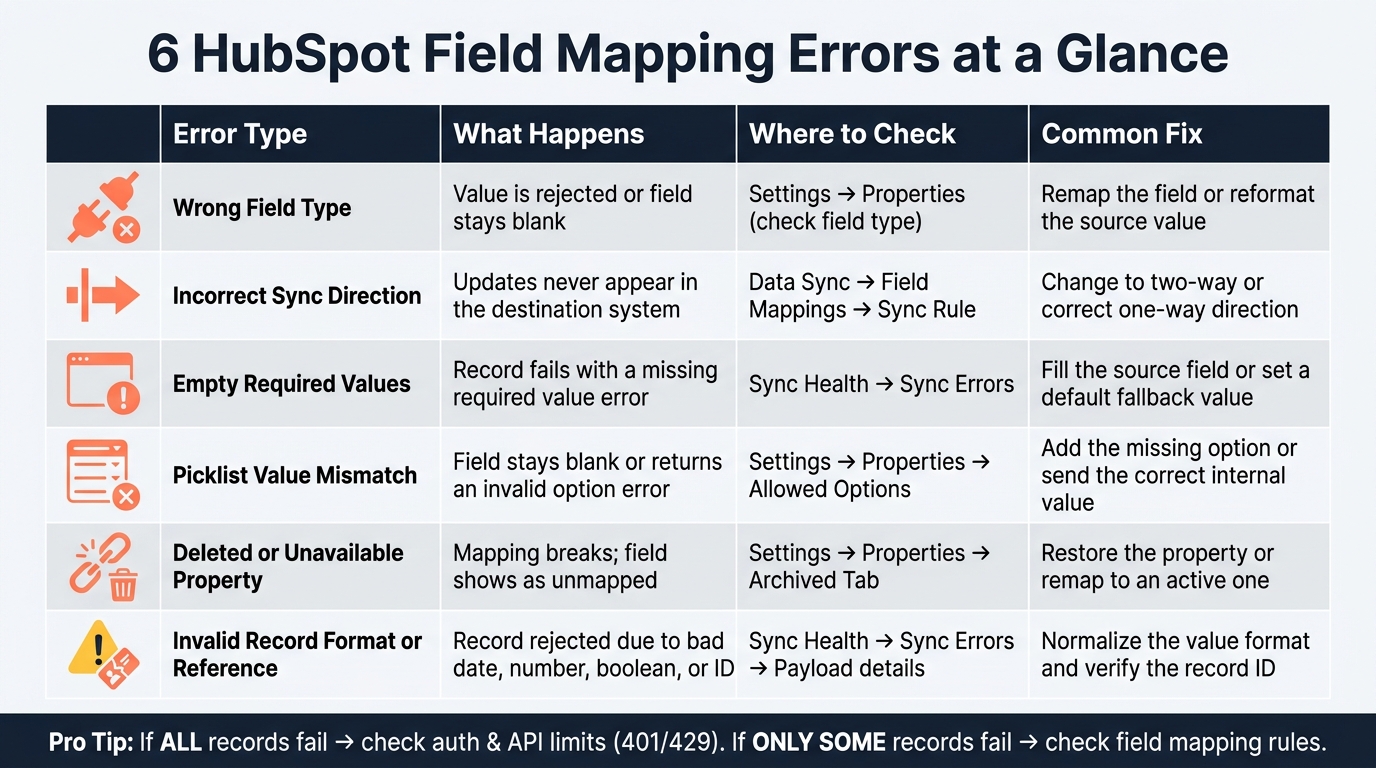
6 HubSpot Field Mapping Errors: Causes, Symptoms & Fixes
How to Bulk Import data into Hubspot CRM & Fix Mapping Errors
sbb-itb-6e7333f
Quick comparison
| Error | What usually happens | First place I’d check | Common fix |
|---|---|---|---|
| Wrong field type | Value is rejected or left blank | Property type in HubSpot and source field format | Remap the field or change the source format |
| Wrong sync direction | Updates never show in the other system | Data sync field direction | Change to the needed direction |
| Blank required value | Record fails with a validation error | Sync error details and required property rules | Fill the source field or use a fallback |
| Picklist mismatch | Field stays blank or throws invalid option error | Allowed property options and internal values | Add the option or map the right value |
| Missing property | Mapping breaks or becomes unavailable | Active and archived HubSpot properties | Restore or remap the property |
| Bad format or reference | Record fails on update or create | Payload, ID format, date format, associations | Fix the value format or record reference |
Bottom line: I’d start in Sync Health, find the failed field and rejected value, then fix the mapping before retrying records. That usually solves the issue without rebuilding the integration.
Why Field Mapping Errors Stop HubSpot Sync
A field mapping is just a rule between two systems. One system sends a value, HubSpot maps that value to a HubSpot property, and HubSpot rejects the update if something doesn't line up. That mismatch can be about field type, allowed values, sync direction, or a required field. So even when the integration itself is live, single records can still fail if one property doesn't pass validation.
Field Mapping Errors vs. Integration Outages
The fastest way to sort this out is to check how much is failing.
A field mapping issue usually hits one property, one object type, or a smaller group of records. An integration outage is broader. It tends to stop sync across the board because of an expired token, a disconnected app, or API throttling. If you see 401 or 429, start with auth and rate limits. But if only records tied to one value - like an unsupported lifecycle stage - are failing while other records still sync, that points to a mapping problem.
| Symptom | Likely cause | Where to start |
|---|---|---|
| All records stop syncing at once | Authentication failure or API rate limit | Connection status, credentials, and HTTP codes |
| Only certain records or fields fail | Field type, picklist, or required-value issue | Mapped fields, property definitions, sync errors |
| Updates from one side don't appear on the other | Incorrect sync direction | Sync direction settings for the affected mapping |
Where to Look First in HubSpot
Go to Settings → Integrations → Connected Apps, open the integration, and review Data sync and Sync Health. The Sync errors area shows the error type, the records hit, and the actions available.
Next, open the Mapped fields table and review each pair closely. Pay extra attention to number, date, datetime, checkbox, dropdown, and multi-select fields. Those field types are the usual trouble spots when type or value rules don't match. Also check the sync direction for each mapping. A one-way sync setting can stop updates from the other system.
Those checks usually narrow down the mapping issue before you start changing records.
With the source of the failure pinned down, the next six sections walk through the exact mapping mistakes.
1. Wrong Field Types
A field type mismatch happens when the source sends one kind of value, but HubSpot expects another. For example, the source might send text, while HubSpot expects a number, date, checkbox, or something else. One tricky part: the rest of the record can still sync, so this issue is easy to overlook.
Common examples of type mismatches:
- Revenue sent as text:
"$12,500.00"mapped to a number field that expects12500.00 - Timestamp sent as datetime: full datetime mapped to a date-only property
- Boolean sent to text:
true/falsemapped to a text field
The main sign is a Type mismatch or incompatible mapping error in sync errors. HubSpot might reject the value, leave the field blank, or mark the record as failed.
Once you fix the format, check the HubSpot property itself. Go to Settings → Data Management → Properties, open the property, and confirm its property type and allowed values. Don’t rely on the label alone. A field called “Status” might be plain text in one system and a picklist in another.
From there, you have three paths: remap the field, change the source value before sync, or create a new property that uses the correct type. If the current property already feeds workflows or reports, it’s usually safer to create a new one instead of changing the old setup.
After you fix the mapping, retry the affected records and make sure the value shows up the right way in HubSpot. If the type lines up and the issue remains, check sync direction next.
2. Incorrect Sync Direction
Sync direction decides which system can send updates for a mapped field. In HubSpot Data Sync, you get three choices: two-way, source app → HubSpot, or HubSpot → source app. So yes, a field can still miss updates even when the field type and mapping look right.
If the mapping checks out but changes still don't show up, direction is the next thing to inspect. For example, if the sync is set to HubSpot → source app only, a change made in the source app will never make it into HubSpot. That doesn't mean the sync is down. It means the field is set up in a way that blocks that update path. In many cases, the mapping still appears correct, but the record is marked as skipped instead of failing validation.
Check direction at the object level - contacts, companies, deals, or custom objects - because this setting is not always global. Open the Data Sync settings for the connected app and confirm the direction there. Also note that some field types only allow one-way mappings, so a field may stay one-directional even if the broader object sync is bidirectional. If the direction looks right and the field still skips, the next place to look is required-value checks.
This issue often shows up as a sync that looks healthy on the surface, with updates quietly missing in one system. Use two-way sync only when both systems need to edit the same field. If not, keep one app as the source of truth so you don't end up with accidental overwrites.
After you change the direction, test with one noncritical record. Update the field in the system that should send the change, wait for the next sync, and then check the destination field. If nothing moves, the next step is to check for empty required values.
3. Empty Required Values
If the mapping and sync direction look right, the next thing to check is simple: did the source send a value at all?
A record can map to the correct HubSpot field and still fail if HubSpot marks that field as required and the source field is blank. When that happens, the sync stops and the record lands in the error queue.
The error usually reads "Missing required value." Use the sync error to find the exact record and field.
Sometimes this only shows up at a certain stage. For example, a deal might sync fine until it moves to closedwon. At that point, close_date becomes required. If that field is empty, HubSpot returns a 400 validation error.
To fix it, you can:
- update the source record so the field has a value
- map a source field that already contains data
- set a default value such as
Unknown,Unassigned, orPending Review
That said, be careful with placeholder values. If the field affects routing, reporting, ownership, or compliance, filler data can cause more problems than it solves.
Once the value is in place, rerun the sync. If the field is filled and the error still shows up, check whether the target property allows that value.
4. Picklist Value Mismatches
If the field type is right but the value still fails, look at the picklist options.
Picklist fields break when the source sends a value that doesn't match one of HubSpot's allowed options. This happens a lot with dropdown and checkbox fields because those fields only accept preset options.
Most of the time, the problem is label vs. internal value. In HubSpot, a dropdown might display Customer to a user, but HubSpot may be checking for an internal value like customer_active. If the source system sends Customer or customer instead of the expected internal value, the validation fails.
This kind of mismatch usually shows up as a record-level sync error. The integration itself stays connected, but that one field stays blank or doesn't update, while other fields keep syncing. You may see errors like invalid option, value not allowed, invalid enumeration value, or could not update property.
For example, a lifecycle value like Marketing Qualified Lead will fail if HubSpot only allows Subscriber, Lead, and Customer.
You can fix it a few ways:
- Add the missing option in HubSpot
- Send HubSpot's internal value from the source system
- Map or translate the value inside the integration
After you change the options, refresh the sync and test a single record.
If the value looks right and it still fails, check whether the property still exists.
5. Deleted or Unavailable Properties
If the value is valid but the update still fails, the destination property may be missing or unavailable.
When a mapped property no longer exists in HubSpot, the sync fails for any record that tries to write to it. Those records fail and move to Sync Health. In most cases, the property is missing, archived, or blocked from the integration because it was archived, permanently deleted, or replaced. At that point, HubSpot can no longer receive the field value.
Use Sync Health to find the broken mapping. Then go to Settings → Properties and search both the active tab and the Archived tab.
You can restore properties archived in the last 90 days. If the property was deleted, remap the integration to an active property. One small gotcha here: a new property with the same label will not fix the mapping. HubSpot matches by internal name, not display label. It also helps to check that the connected user has permission to write to that property.
If the property is still there, the next thing to check is whether the record format or reference is invalid.
6. Invalid Record Format or Reference
If the property exists and the field mapping is correct, the next place to look is the payload. When the value being sent doesn't match the format HubSpot expects - or when a record reference points to something HubSpot can't find - the sync fails for that record.
A few common cases show up again and again:
- Dates can fail when the source sends
09/28/2026but HubSpot expectsYYYY-MM-DD. - Numbers like
1,250should be sent as1250. - Boolean values should be
trueorfalse, notYesorNo.
References can also fail if the target record is missing, is the wrong object type, or is being identified the wrong way. Treat HubSpot record IDs as strings. That part matters more than it seems. Spreadsheet tools and ETL pipelines sometimes convert IDs into numeric values or scientific notation, and that can break the reference.
If your integration uses an email address or a custom unique property instead of the default record ID, make sure the request explicitly sets the correct idProperty.
To fix this, open the failed sync details and look for the exact record and error message. Then compare the payload against HubSpot's field rules, correct the source data, and retry the record once. If you retry the same bad payload without changing anything, you'll just get the same error again.
Use the error message to match the bad value or broken reference to the right fix below.
Quick Troubleshooting Table
If you need a fast diagnosis, use this table to match the symptom to the fix.
| Error Pattern | Likely Cause | Where to Check | Fix |
|---|---|---|---|
| Mapping cannot be saved; the pairing is rejected | Field types do not match | Settings → Integrations → Connected Apps → [integration] → Data sync → Field mappings | Create a matching property or remap to a compatible field |
| Data updates in one system but never reaches the other | One-way sync is blocking the update | Data sync → Field mappings → Sync rule for the affected field | Set the right sync direction and test with a test record |
| Records fail to create or update | Required value is blank | Data sync → Sync Health → Sync errors | Fill the source value or map a populated fallback field |
| A field syncs blank or gets rejected | Source value does not match an allowed HubSpot option | Settings → Data Management → Properties; review allowed options and Refresh mapping | Refresh the mapping, add the missing option, or translate the value |
| A mapped field disappears or shows as unmapped | Property is missing or unavailable | Settings → Data Management → Properties; the integration's Field mappings page | Restore, recreate, or remap the property |
| A record is rejected; the error points to a bad ID, date, or association | Record format or reference is invalid | Sync Health → Sync errors; inspect the source record and association details | Normalize the value, verify the target record's ID, confirm the association type ID, and retry |
If the table points to a specific error, go to the matching section above for the full fix.
Conclusion
These errors usually come down to one thing: a mapped value breaks one of HubSpot’s rules. In most cases, a blocked HubSpot sync is caused by one of six mapping errors - not a failed integration. The sync itself is still running. The record just fails validation.
Open Sync Health, find the error, and note the affected property and the rejected value. That gives you a fast path to the fix. Then check the field type, sync direction, required values, allowed options, and record references. After that, retry with a small sample before rolling the change out more broadly.
Fix the mapping first, validate a small sample, then resync at scale.
FAQs
How do I tell a mapping error from a HubSpot outage?
Check your integration’s sync logs and error dashboard. Mapping errors tend to show the same field-level messages again and again - things like data type mismatches, missing required values, or picklist conflicts.
A HubSpot outage usually looks broader. You’ll often see API timeouts, authentication failures, or HTTP 429 rate-limit errors. If the same problem shows up across many records, check HubSpot’s status page or review your API call volume.
Which HubSpot field types cause sync failures most often?
The most common causes are field type mismatches and picklist inconsistencies.
Sync errors usually show up when the data format doesn’t fit the destination field. For example, you might send free-form text into a dropdown field, or try to push text into a number field. That’s where things break.
Mapping conflicts can also stop the sync. A common case is when one system expects a state abbreviation, like CA, but the other sends the full state name, like California.
What should I check before retrying failed records?
Before you retry failed records, check your sync error logs and find the root cause. In most cases, the issue comes down to mismatched field formats, missing permissions, or API rate limit violations.
Then review your field mapping and make sure it lines up correctly. Also check that all required destination fields are filled in and that your data is in the right format. If you can, test the fix with a small sample first before you run a full re-sync.