Omnisend makes email marketing easier by offering tools to create professional, branded emails without coding. Its drag-and-drop editor and Brand Assets feature let you design emails that align with your brand. You can access a wide range of templates tailored to specific goals like welcome emails, promotions, and abandoned cart recovery. These templates are available even on the free plan and can be customized for mobile and desktop users.
Key highlights:
- Drag-and-Drop Editor: Rearrange layouts, add text, images, and buttons effortlessly.
- Brand Assets: Automatically apply your logo, colors, and fonts for consistent branding.
- Dynamic Content: Use blocks for product recommendations, abandoned carts, and discounts.
- Personalization: Add customer names, locations, and product preferences to emails.
- Segmentation and Automation: Target specific groups and automate workflows for better results.
Omnisend’s tools help you create emails that are mobile-friendly, visually appealing, and effective at driving engagement. Whether you’re running promotions or automating customer journeys, these features can simplify your email marketing efforts while boosting performance.
How to Build Campaigns & Design Emails | Step #4
sbb-itb-6e7333f
Omnisend's Template Library
Omnisend Email Campaign Performance Statistics and ROI Benchmarks
Omnisend offers a robust template library accessible to all users, including those on the free plan. This library is organized by campaign goals, such as welcome emails, product promotions, sale announcements, and discount offers. It also features templates for automated workflows like abandoned cart recovery, order confirmations, and birthday greetings.
How to Access and Browse Templates
To use templates for regular campaigns, navigate to Campaigns → + New campaign → Create email, enter your subject line and sender details, and select "Choose Email Template." For automation workflows, go to Automation → + New Workflow, select or edit an email step, and choose "Edit Content" or "Choose Email Template." Once inside the library, you can browse mobile-friendly designs or filter templates based on goals like Welcome, Promotion, or Product Launch. Custom designs are stored under the "Saved Templates" tab, and you can also filter by "Other Goals" to access Plain Text or HTML templates. Keep in mind that the Email Builder is optimized for desktop use.
Template Access by Pricing Plan
Omnisend's Free plan offers full access to the Email Builder, including its entire library of themed templates, drag-and-drop editing tools, and the ability to save unlimited custom templates. The pricing tiers primarily differ based on contact volume and email send limits rather than design features. Even pre-built automation workflows, such as Welcome series and Abandoned Cart templates, are included without requiring payment details.
Choosing Templates for Specific Campaign Goals
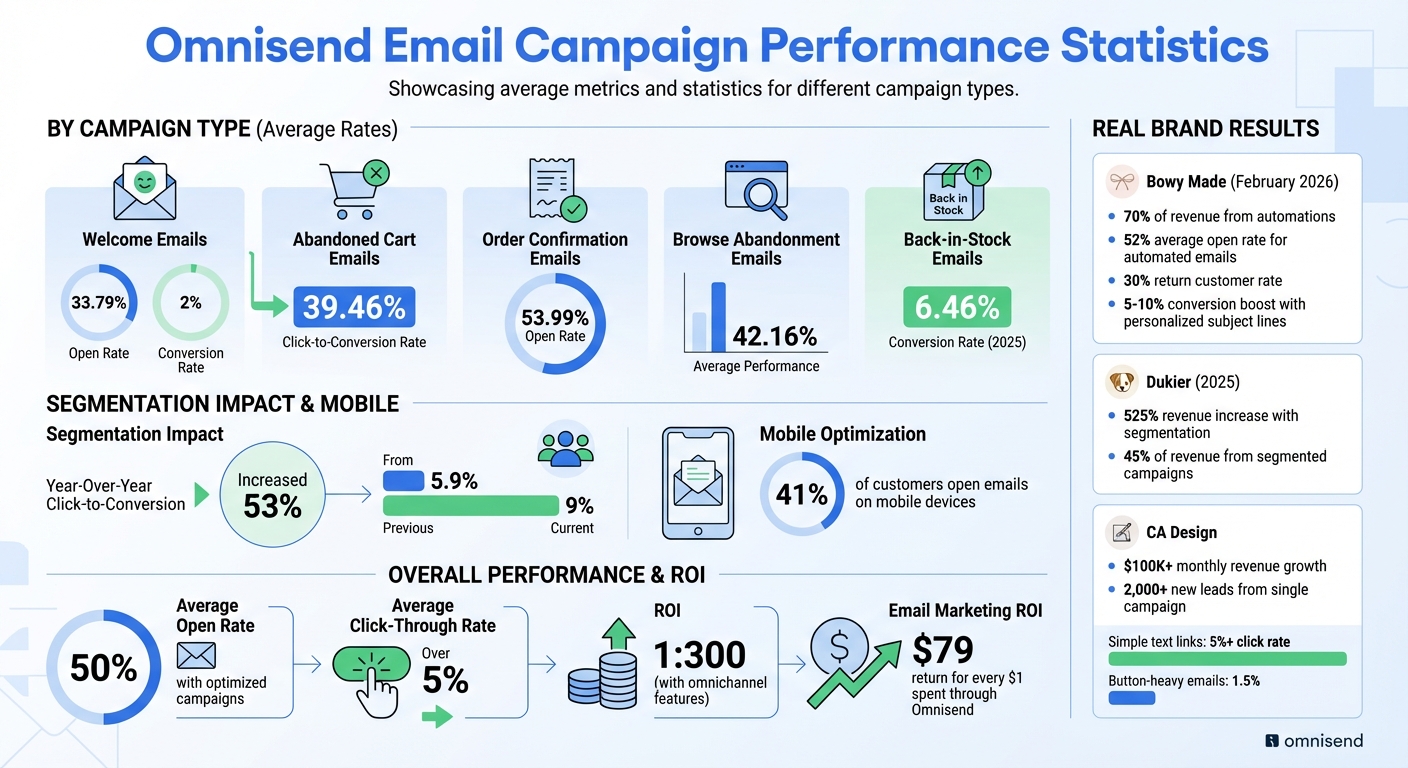
Selecting templates that align with your campaign's purpose can significantly influence its results. For instance, welcome emails typically achieve an average open rate of 33.79% and a 2% conversion rate, while abandoned cart emails boast a 39.46% click-to-conversion rate. Order confirmation emails often see a 53.99% open rate, and browse abandonment templates average around 42.16%.
In February 2026, Bowy Made revealed that 70% of its revenue came from automations. By leveraging lifecycle email templates, the brand achieved a 52% average open rate for automated emails and a 30% return customer rate. Harry Kelly, Ecommerce Manager at CA Design, shared:
"Omnisend's drag-and-drop builder made launching emails effortless. We can go from idea to execution in no time."
His team’s use of pre-built tools led to over $100K in monthly revenue growth and more than 2,000 new leads from a single competition campaign.
Next, learn how the drag-and-drop editor can help you customize these templates even further.
Using the Drag-and-Drop Editor
Omnisend's drag-and-drop editor allows you to create clean, code-free email templates with ease. Simply drag a layout, like a single or multi-column grid, onto your canvas and then add elements such as text, images, or buttons.
To start, set up your Brand Assets in Store Settings. This includes uploading your logo (recommended size: 600×200 px), selecting primary colors (Accent for CTAs, Dark for text, and Light for backgrounds), and choosing fonts. Once configured, Omnisend applies these elements to all new templates. As Ira from Omnisend's Help Center puts it:
"Brand Assets are elements that make your brand identity unique and recognizable: your logo, colors, fonts, and social links. Once set up, Omnisend automatically applies them to new email templates." - Ira, Omnisend Help Center
From there, you can fine-tune your design using the editor's control panel. The right-hand panel lets you adjust global settings like the canvas width (default is 600px), background colors, and button styles. You can also control element visibility for different devices, ensuring your design works seamlessly on mobile and desktop.
To avoid losing your work, save your progress regularly by clicking "Save as template." Additionally, you can store custom layouts or commonly used elements in the Library tab, making them easily accessible for future campaigns.
Changing Text, Colors, and Images
Editing text is simple - just click on a text block to modify its font, size, color, or alignment. Omnisend supports system and web-safe fonts with automatic fallbacks, so your email remains readable even if a recipient’s email client doesn’t support the chosen font. You can also assign different fonts to headings and body text to create a clear visual hierarchy.
When it comes to colors, everything revolves around the three primary brand colors you set in your Brand Assets. You can either pick from a built-in palette or input specific hex codes for precise matching. These colors apply to backgrounds, buttons, links, and text, ensuring a cohesive look across your email.
For images, you can upload files directly from your computer or paste a URL into the editor. Your brand logo is automatically pulled from your Brand Assets, so it’s always correctly sized and positioned. Product images, on the other hand, can be synced directly from your e-commerce platform (like Shopify, BigCommerce, or WooCommerce), ensuring that product photos, prices, and links are always up to date.
Once the basics are in place, you can further enhance your email with dynamic content blocks.
Adding Dynamic Content Blocks
Dynamic content blocks take personalization to the next level. Drag options like Product Recommender, Product Listing, Abandoned Products, or Discount blocks into your template to tailor emails to your audience. Here’s what each block does:
- Product Recommender: Suggests products based on your store’s data.
- Product Listing: Lets you manually select featured products using the Product Picker tool.
- Abandoned Products: Displays items left in carts as part of automation workflows.
- Discount blocks: Integrate directly with platforms like Shopify, BigCommerce, and WooCommerce to generate unique or static discount codes, saving you the hassle of manual setup.
For even more advanced customization, use Conditional Content Blocks to show or hide specific sections based on recipient segments or automation triggers. Just make sure your e-commerce platform is synced, as these blocks rely on real-time store data. If you encounter unsupported formatting errors, try clearing all formatting or disabling browser translation tools.
Using AI Tools for Design and Content
Omnisend also includes AI-powered tools to simplify your design and copywriting process. The AI Writer can generate subject lines, preheaders, and email content in your brand’s tone. It analyzes your input and suggests variations, helping you overcome writer's block or come up with fresh ideas for seasonal campaigns.
With these tools, email campaigns often achieve open rates of 50% and click-through rates of over 5%. When paired with Omnisend's omnichannel marketing features, these campaigns can deliver an impressive 1:300 ROI.
Adding Personalization with Dynamic Elements
Building on template tweaks and dynamic content blocks, personalization takes your emails to a whole new level. Instead of sending out generic messages, you can craft emails that feel tailored to each recipient. With Omnisend, you can use Liquid syntax to customize everything from subject lines to product recommendations, leveraging customer data to create a more engaging experience.
Using Customer Data for Personalization
Omnisend makes it easy to pull in customer details with double square brackets [[ ]] for data and [% %] for conditional logic. For example, you can personalize a greeting with [[contact.first_name]], reference location data like [[contact.city]] or [[contact.country]], or even include custom properties such as loyalty points or birthdays collected through forms or integrations.
To keep things professional when data is missing, always include fallback values. For instance, [[contact.first_name | default: "there"]] ensures your greeting says "Hi there" instead of just "Hi" if the first name field is blank. You can also clean up formatting by using filters like [[contact.first_name | capitalize]], which turns "john" into "John."
For more advanced personalization, conditional logic allows you to adjust content based on specific criteria. For instance, [% if contact.country == "France" %] Bonjour! [% else %] Hello! [% endif %] can display localized greetings. However, keep in mind that this feature works only in automation workflows. To ensure your personalization works as intended, use the Test & Preview feature in the editor and select an actual contact. Standard test emails will display raw tags instead of populated data.
Once you’ve nailed personalized greetings and messages, you can take it a step further with product recommendations.
Adding Product Recommendations
The Product Recommender block in Omnisend is a powerful tool for tailoring your emails. Simply drag the block into your template and choose a strategy like "Recently Viewed", "Top Sellers", or "Complementary Products" to suggest items based on customer behavior or store trends.
"Milda Bernatavičiūtė advises keeping subject lines under 40 characters and using a creative layout for engaging product discovery."
Timing is everything - send recommendations shortly after a purchase when interest is high, or within hours of a cart abandonment. To boost the impact of your recommendations, add social proof like star ratings, customer reviews, or "Frequently bought together" sections.
When designing product grids, enable "Mobile Stacking" in the Email Builder to ensure clean layouts on smaller screens. Always test your emails on multiple devices to make sure custom widths display correctly without distortion.
Creating Effective Calls-to-Action
Every email should have one clear goal, supported by a single, prominent call-to-action (CTA). Back in February 2026, ecommerce brand CA Design found through A/B testing that simple text links drove a click rate of over 5%, while button-heavy emails lagged behind at just 1.5%.
Use actionable, specific phrases like "Get Early Access", "Shop the Drop", or "Sign Up Now" to make your CTAs more compelling. You can even personalize CTA buttons using Liquid syntax - like adding a recipient’s first name or embedding order IDs into URLs. For abandoned cart emails, include event-based variables like [[abandoned_cart.recover_url]] to direct customers straight back to their checkout page.
Make sure CTAs are large, easy to tap, and visually distinct, especially since 41% of customers open emails on mobile. For example, Bowy Made, managed by Dallas, saw a 5-10% bump in conversions in early 2026 by using personalized strings like "Jessica, you left something behind" in their emails. Always include fallback values in personalized CTAs to avoid awkward blank spaces when data is missing.
Segmentation and Automation Features
Once you've customized your templates with tailored content, the next step is putting them to work for different audience groups and automated workflows. Omnisend's segmentation and automation tools make it easy to deliver the right message to the right person at the right time - without needing to redesign everything from scratch. Let’s dive into how to use these segmented templates effectively within automated workflows.
Creating Segmented Campaigns with Custom Templates
You can segment your contacts based on factors like demographics, shopping habits, interests, or engagement levels, then target each group with a specific custom template. For example, Dukier, a dog accessories brand, used segmentation by geography and language to connect with customers in Spain, Germany, France, Italy, and Portugal back in 2025. By tailoring their welcome series and segmented campaigns, they saw a 525% revenue jump, with 45% of that coming from segmented sends.
"The result [before segmentation] was low relevance, high manual effort, and revenue leaking every day." – Patricia Jimenez, Ecommerce Manager, Dukier
To create a segmented campaign, start by saving your custom email design as a reusable template directly in the email editor. Then, apply segmentation filters to define audience groups - like "high spenders who haven’t purchased in 30 days." Omnisend’s AI segment builder can streamline this process by generating advanced audience groups through natural language prompts. This approach has proven to pay off: segmented and targeted emails saw click-to-conversion rates climb 53% year-over-year, increasing from 5.9% to 9%. With segmentation in place, you're ready to automate.
Using Templates in Automated Workflows
Your custom templates integrate seamlessly into automated workflows like welcome series, abandoned cart emails, and re-engagement campaigns. To add a saved template, simply select it from the "Saved Templates" tab when setting up your workflow. For instance, Bowy Made, a luxury baby apparel brand, used lifecycle stage segmentation to create automated workflows with customized templates. These workflows, including abandoned cart recovery, ended up driving over 70% of their total email marketing revenue.
For workflows like regular promotions or re-engagement campaigns, you can fine-tune re-entry timing by adjusting Frequency Settings. Additionally, conditional splits allow you to send different templates to various audience segments based on data like language preferences or loyalty tiers. Back-in-stock automated emails, for example, achieved a 6.46% conversion rate in 2025.
Copying Segments Across Multiple Stores
Managing multiple stores? You can manually copy saved templates and segments between accounts to maintain consistent branding. Go to Store settings → Saved templates, click "Copy", and choose the destination store from the dropdown menu. This ensures your designs, layouts, and content blocks stay intact without needing to recreate them. Similarly, segments can be replicated across stores using the same eCommerce platform, keeping your targeting strategies uniform. Keep in mind, though, that templates and segments don’t sync automatically - you’ll need to copy them each time you want to use them in another store. This method extends your custom template strategy across all your outlets.
Template Management Best Practices
Managing your customized templates effectively is key to ensuring consistent quality and branding across your campaigns. A well-organized template system not only saves time but also minimizes errors and keeps your branding intact.
Using the Template Usage Visibility Feature
Omnisend’s usage count feature is a handy tool that shows where and how often each Universal Layout is used in your campaigns and automations. Before you delete any layout, always check its usage count to avoid disrupting live workflows or scheduled campaigns that depend on specific headers, footers, or content blocks.
When you edit a Universal Layout, those changes automatically sync across all linked emails. If you’d like to test a variation without impacting live workflows, drag the layout into an email and choose "Edit independently" instead of "Edit universally". This creates a standalone version that won’t affect other campaigns. To be extra cautious, duplicate widely used layouts before making significant edits. Simply drag the layout into an email, select "Edit independently", and save it with a new name, like "Header v2".
Properly managing your saved templates can further streamline your workflow and reduce potential headaches.
Copying and Renaming Templates
You can find all your custom templates under Store Settings → Saved Templates, where you can preview, rename, copy, or delete them. When saving a design in the email editor, you’ll see two options: "Save as new template" to add it to your library or "Update existing template" to overwrite an older version. Use clear and descriptive names such as "Holiday Promo - 2026" or "Standard Footer v2" to make them easier to locate later.
If you manage multiple stores, you can copy templates between accounts by selecting a "Destination account" in the saved templates settings. These copied templates are independent, meaning updates to the original won’t sync to the duplicates. When duplicating, use the "Rename the template" field to give the new version a distinct name tailored to specific campaigns or stores.
Designing Reusable Templates
Reusable designs are a powerful way to boost efficiency while maintaining brand consistency. The most effective reusable templates are built with adaptability in mind. Stick to the default 600px width to ensure email platform compatibility across mobile and desktop devices. Additionally, create separate Universal Layouts for Campaigns and Automations, as certain elements like "Abandoned products" or "Preheaders" are context-specific and may not work correctly in the wrong email type.
"Creating reusable email blocks saves you time, keeps your emails consistent, and builds brand recognition." – Vytautas Palubeckas, Content Project Manager, Omnisend
To build a solid design system, create reusable blocks for key sections like headers (with logos), hero images, product listings, text descriptions, and social proof sections. Standardize your footers to include navigation links, social media icons, contact details, and the required unsubscribe link. If you’re importing templates from external tools, use htmlcorrector.com to remove unsupported tags before saving them to your library.
Conclusion
Omnisend's customization tools make it simple to create polished, on-brand email campaigns. With its drag-and-drop editor and features like Brand Assets, designing mobile-friendly emails that look great on any device becomes effortless. The platform's standard 600px width and single-column layouts ensure your messages display as intended. When paired with personalization, these design basics can take your campaigns to the next level.
The most impactful campaigns blend well-designed templates with personalization and automation. Using dynamic content blocks, product recommendations, and customer data like [[contact.first_name]], you can create emails that feel uniquely tailored to each recipient. For example, Bowy Made found that personalized subject lines converted 5-10% better than generic ones. As Rens Robroek, Founder of La Machine Cycling Club, aptly said:
"You've got to keep your emails beautiful - design really matters. When a campaign looks great, people trust it more, and they're more likely to click."
Efficient template management also plays a key role in maintaining consistent branding and streamlining workflows. Features like usage counts, reusable blocks for headers and footers, and fallback values for personalization tags help you work smarter. Keeping email file sizes under 102KB prevents Gmail from clipping your content, and designing logos with transparent backgrounds ensures compatibility with Dark Mode.
Strong design, smart personalization, and effective template management are the backbone of successful email campaigns. These tools not only enhance your brand's visual identity but also drive results. With email marketing delivering an average return of $79 for every $1 spent through Omnisend, mastering these features can help boost both efficiency and revenue.
FAQs
How do I make one template work well on mobile and desktop?
To make sure your template looks great on both mobile and desktop, focus on responsive design techniques like mobile stacking. This method organizes content into a single column for easier viewing on smaller screens. Start with a mobile-first approach, ensuring your design works seamlessly on mobile devices before scaling up for desktops. Always preview your email on both device types to catch any issues.
Tools like Omnisend's drag-and-drop editor, pre-built templates, and universal layouts can simplify the process. These features help you create emails that are consistent and easy to read, no matter the device.
How can I safely use personalization tags without missing data issues?
When working with personalization tags in Omnisend, it's important to prevent missing data issues. One way to handle this is by using fallback text or setting default values. These features ensure your emails still make sense, even if specific data isn't available. Additionally, leveraging Liquid templating lets you apply conditional logic to manage dynamic content effectively. These strategies help maintain smooth, personalized messaging while reducing the risk of errors.
What’s the best way to manage reusable headers and footers across emails?
The easiest way to handle reusable headers and footers in Omnisend is through Universal Layouts. With this tool, you can save sections like headers and footers for use across multiple emails. The best part? When you update a Universal Layout, it automatically updates every email that uses it, keeping your design consistent and saving you a ton of time.